Free projection mapping in your browser
Phosphene has a projection mapper built in, so its live, audio-reactive visuals can leave the laptop screen and land on real objects: a building, a stack of boxes, a DJ booth, the panels of an art car. It's free projection mapping software that runs in a browser tab. You pin the corners of up to eight surfaces, choose how the image spreads across them, and the visuals keep reacting to the music the whole time.
Open PhospheneFree, no sign-up. It runs in your browser.
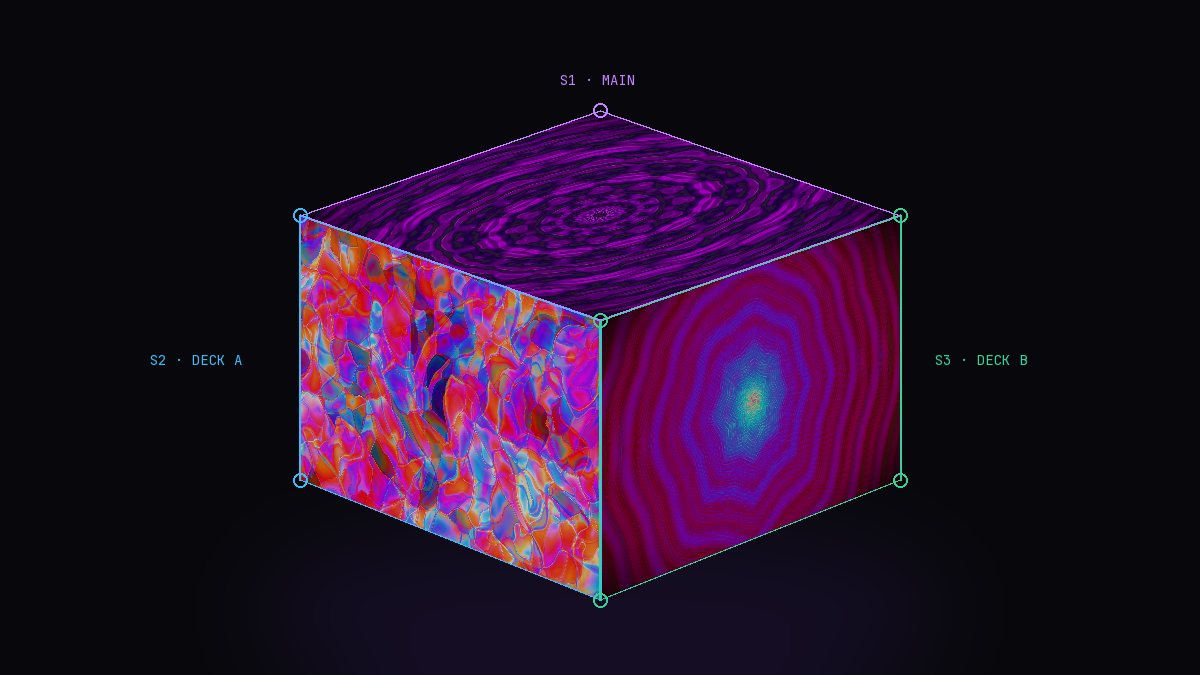
How mapping works in Phosphene
A surface is a four-cornered shape that you drag into place over a real object, as the projector sees it. Phosphene warps the visuals to fit each surface, so a flat face seen at an angle still looks square and correct. You can have up to eight surfaces at once.
The mapper sits between the engine and the output. Whatever is playing, whether a built-in engine, a deck or your own Shader Lab code, goes through it, along with the color controls and effects. Your layout is saved in the browser, so it's waiting the next time you open Phosphene on the same computer.
Before you start
- Fix the projector in place. Every bump moves the image, and a moved projector means re-pinning corners. A solid mount or a heavy shelf saves you from that.
- Run the projector at its native resolution and turn off its own keystone correction. Let the corner pin do the correcting, so you're not stacking two warps.
- Use the output window. Press O, move the window to the projector display, and keep the controls on your laptop.
Set up your surfaces
- Aim the projector so its image covers everything you want to map, with a little to spare.
- Open the output window with O and put it on the projector.
- Turn on the test grid. Each surface shows a grid with its number, so you can see which one you're moving and whether straight lines stay straight.
- Add one surface per flat face, up to eight.
- Drag the four corners of each surface onto the corners of its face. Judge it on the object itself, standing close, not on the laptop screen.
- Choose Extend or Copy (explained below).
- In Copy mode, pick a source for each surface: Main, Deck A or Deck B.
- Blend edges where surfaces overlap or meet.
- Turn the test grid off and play.
Corner pin
Corner pin, also called four-point warping, is the most direct kind of mapping. Each surface is a quad, and moving its corners distorts the image so it sits flat on a rectangle seen from any angle: a wall, a panel, the side of a box, a hanging screen.
A single quad can't follow a curve. For a curved or bent object, such as a column or the rounded nose of a vehicle, split it into several narrow flat strips and give each its own surface. With eight surfaces, a gentle curve usually works out.
Extend vs Copy
This one setting decides how the picture is shared across your surfaces.
| Mode | What each surface shows | Best for |
|---|---|---|
| Extend | Its own slice of one continuous image, as if every surface were a window onto the same big canvas | Building facades, rows of windows, a wall of panels |
| Copy | The whole visual, from Main, Deck A or Deck B | Boxes, cubes, sculptures and other separate objects |
Extend keeps motion flowing from one surface to the next, which is what makes a facade read as one piece. Copy gives every object a complete image, so each face of a cube shows the whole mandala rather than a fragment of it.
In Copy mode the per-surface source opens up more ideas: alternate boxes between Deck A and Deck B, or put Deck A on the front of the DJ booth and Deck B on the backdrop.
Edge blending
Edge blending feathers a surface's top, bottom, left or right edge. Use it where two surfaces overlap, so the seam doesn't double up in brightness, or to soften an image that spills slightly past the edge of an object. A small blend hides a lot of imperfect pinning.
Test grid
The test grid draws a grid on every surface, each one labeled with its number. Use it for the first alignment, to check that lines run straight across a face, and to work out which surface is which when they overlap. Turn it back on whenever something gets knocked.
The output window
The output window (O) shows only the mapped visuals, with no controls, so you can put it on the projector and keep working on the laptop. If you have just one display, F for full screen and H to hide the panel give you a clean image instead.
Practical tips
Buildings and facades
Use Extend mode and give each wall plane, or each bay of windows, its own surface. Distance eats fine detail, so bold, high-contrast scenes read better from across a street than the finest lace patterns. Repeating, tiled engines such as Fractal Quilt also help hide the joins between surfaces. Ambient light is the enemy; wait until it's fully dark.
Boxes, cubes and sculptures
Use Copy mode. A cube seen from a corner shows three faces, so it takes three surfaces; two cubes take six, which still leaves two for something else. White or light gray surfaces take projection best. Symmetrical engines such as Sacred Geometry look deliberate on each face.
Stages and DJ booths
Map the booth front and any backdrop panels separately, use Copy mode with Deck A and Deck B to give them different looks, and blend the edges where panels meet. Hold B for blackout and X for strobe on the drops.
Art cars and anything that moves
Mount the projector rigidly to the vehicle, not to a separate stand, so the image travels with the panels. Check the test grid after driving, since mounts shift. Phosphene works offline after the first load, which matters where there's no signal.
Galleries and installations
Map the pieces once, leave autoplay switching scenes on the bar, and add a webcam so visitors' movement pushes the visuals around them. The body tracking guide covers that.
Limits to know
- Up to eight surfaces, each a four-corner pin.
- The layout is stored in the browser on that computer. Set up on the machine you'll perform with, and don't clear the site's data before the show.
- A browser can't send Syphon, Spout or NDI. If you need Phosphene inside Resolume or MadMapper, see this route.
Open PhospheneIt's free, and there's nothing to install.